Search on this Blog

Apr 4, 2011

Microsoft Launches – MVA (Microsoft Virtual Academy)

Microsoft is launched a new learning experience for you called MVA (Microsoft Virtual Academy) with the objective of helping you to build the necessary skills to grow in your IT role and career with Microsoft Cloud technologies.
This Microsoft Virtual Academy will help you improve your IT skill set and thus advance your career with a free, easy to access training portal that allows you to learn at your own pace, focusing on Microsoft technologies. Earn points, each completed trainings and get recognized by the community by moving up the ladder into a Bronze, Silver or Platinum membership.

In MVA, you will find the following resources learning content such as:
  • Whitepapers
  • Webcasts
  • Training Videos
  • Forums
  • Access to community experts
  • Statistics of your performance and professional progress
  • Level of knowledge within the career selected.
When subscribing to MVA, you will become an active member and according to your progress you will receive additional benefits such as Certification Vouchers discounts, Coupons for training centers, preferred access to Microsoft events and much more other benefits….

Register now! Visit this site http://www.microsoftvirtualacademy.com/ and follow the registration process.

Mar 24, 2011

Windows XP to Windows 7 Migration Guide

This guide walks you through the decisions you'll make when migrating from a Windows XP environment to Windows 7, and learn about the tools and resources available from Microsoft to help you each step along the way.
There are three major steps we need to consider while getting into XP to windows 7 migration.
  1. Collect, Analyze, and Test
  2. Remediate Applications – Fix
  3. Remediate Applications – Virtualize (Optional)
  4. Deploy Operating System

Collect, Analyze, and Test

This section walks you through how to collect information about running your hardware and applications. It then analyzes the list of applications in the environment, and then test those applications for compatibility.
XP-Win7-Migration

Remediate Applications – Fix

After the collection and analysis of data, we must test and mitigate (fix) the application issues. This process can be accomplished by using the Standard User Analyzer (SUA), the Compatibility Administrator, and the Setup Analysis Tool. All tools are available with the Microsoft Application Compatibility Toolkit (ACT).
chart2b

Remediate Applications – Virtualize (Optional)

Virtualization may help to solve an incompatibility problem. There are several ways to virtualize applications. We can run virtual machines on centralized servers, distribute them to new physical desktops and/or combine the deployment of a new operating system with virtualized applications. In this section, we’ll find material that will help you to determine which option works best for us.
chart3b

Deploy Operating System

Once we have determined our software is compatible, we can start the deployment process. Please be aware that there is no upgrade path from Windows XP to Windows 7, only from Windows XP to Windows Vista and then Windows Vista to Windows 7. We can, however, use the User State Migration Tool (USMT) to keep the data in place and re-deploy just the Operating System.
chart4b
Here you will find complete Microsoft guide


Mar 23, 2011

Microsoft’s Virtualization Solutions

Virtualization is one of the most effective methods to save costs, increase the availability , and improve agility within an organization’s infrastructure. Microsoft Virtualization solutions provide you with the way to optimize your infrastructure by helping IT provide the services more rapidly and efficiently while allowing an organization to consume these services more effectively in a dynamically changing business climate. Click here to read more….

Resources

One point where in you have access to White Papers, Videos, Virtualization TechNet Resources, Virtualization Tools (ROI Calculator, Microsoft Assessment and Planning (MAP) Toolkit and HyperGreen Tool) and MS Virtual Labs.

Microsoft Virtualization Demos

Learn more about the Microsoft Virtualization products and solutions, and see them in action by viewing this collection of demos.
       
  
Creating a Viable Virtualization Design 

Microsoft Virtualization Community

To join the Virtualization conversation. Follow Microsoft experts to stay up-to-date on the latest industry and Microsoft Virtualization news and information. Click here to join community…

Mar 18, 2011

Internet Explorer 9 Product Guide and Group Policy Reference…

Windows Internet Explorer 9 (abbreviated as IE9) is the new version of the Internet Explorer web browser from Microsoft. It was released to the public on March 14, 2011.
System requirements for IE9:
Windows 7
Windows Server 2008 R2,
Windows Server 2008 (with Service Pack 2(SP2)
Windows Vista,
Windows Server 2008
Note: Both 32-bit, 64-bit builds are supported and Windows XP is not supported.
Overview for IT Professionals:
Internet Explorer 9 can also help IT pros standardize on the only web browser that provides nearly 1,500 Group Policy settings to help streamline desktop management and support. IT pros can have trouble gaining user acceptance for a web browser that end users do not like. Internet Explorer 9 can help alleviate this issue. The browser includes features that end users have specifically requested, such as tear-off tabs, the Download Manager, and better integration with the Windows 7 taskbar. Internet Explorer 9 is also considerably faster than Internet Explorer 8. End users who enjoy Internet Explorer 9 can drive adoption, helping you to reduce management and support costs by standardizing the desktop. Click here to read more.
FAQ for IT Professionals:
Find information about new features in Internet Explorer 9 that are important to IT Professionals. Click here for checking out for Frequently Asked Questions (FAQs)
Internet Explorer 9 Product Guide:
This product guide outlines new features in Internet Explorer 9, highlights the top features, and provides additional information on features specific for end users, developers, and IT professionals. Read on to learn more about how Internet Explorer 9 unlocks the Beauty of the Web. IT Professionals and IE9 enthu’s download product guide here.
Group Policy Settings Reference Windows IE9:
The policy settings included in this spreadsheet cover Internet Explorer 5, Internet Explorer 6, Internet Explorer 7, Internet Explorer 8 and Internet Explorer 9. These files are used to expose policy settings when you edit Group Policy objects (GPOs) using Group Policy Object Editor (also known as GPEdit). Download the reference spreadsheet here.

Mar 5, 2011

Windows Deployment Guide – Step by Step

WDS (Windows Deployment Service) is a revised version of RIS (Remote Installation Service).  Windows Deployment Services enables you to deploy Windows operating systems, particularly Windows Vista® and Windows7 and Server 2008. You can use it to set up new computers by using a network-based installation. This means that you do not have to be physically present at each computer and you do not have to install each operating system directly from a CD or DVD.
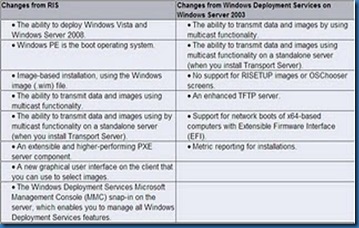
What’s new in Windows Deployment Services?
clip_image001 
Installing the WDS role on Windows Server 2008
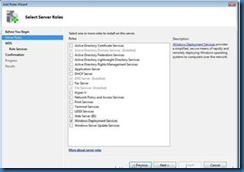
Installing WDS in Windows Server 2008 is quite simple; just add it as a Server Role from Server Manager.
clip_image003 clip_image005
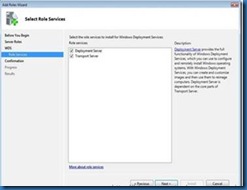
Besides the core components in WDS, Windows Server 2008 has the multicasting feature for the deployment. Transport Server option gives us that functionality. Click on next and then install.
clip_image007
Configure WDS for first use
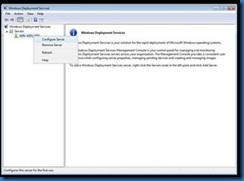
WDS also has a simple procedure to configure the server, just running a wizard and you’ll be good to go. In Administrative tasks open the WDS up in mmc, expand “Servers” then right click on the root name, and “configure server”.
clip_image009
We’ll need to create a path for the storing of our images. E:\RemoteInstall. clip_image011
PXE answer policy, every time a machine boots from the network you can decide if they are going to receive an automatic answer or wait for an administrator decision. clip_image013
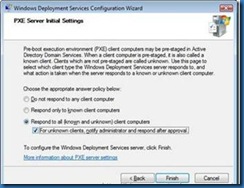
Uncheck “add images now” select next.
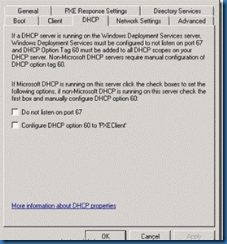
If we have the DHCP server on the same operating system running WDS, we’ll also need to access the WDS server properties and select on the DHCP tab both options: “Do not listen on port 67” and “Configure DHCP option 60 to ‘PXEClient’.
In our case the DHCP role is placed on a different server and those options are not checked. clip_image015
Adding Boot and Default Windows 7 Images
Every environment we are trying to deploy will always need boot images; fortunately we just have to select the boot images included on Windows 7 DVD. Right click on “boot images” and select add boot image.
clip_image017
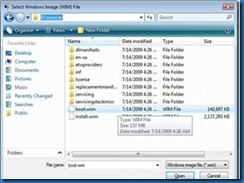
Using a Windows 7 DVD, we can easily find the boot.wim file in “sources” folder.
clip_image019.
Now we can leave the image name to its default or we can change it. Confirm settings then continue. For adding the Windows 7 operating system image is the same procedure to run, but using the “Install Images” folder in WDS console.
Adding the default Install Image Right click on Install Images in the WDS console and select Add Image.
Creating a new image group.
clip_image021.
Browse again in “sources” folder and select install.wim. clip_image023.
Now we are given a choice of all the available versions of the installation media; install.wim contains all the versions available of Windows 7.
clip_image025.
We can select just one version to avoid allocating unnecessary space in the hard drive.
Once completed we’ll have available a boot image, plus a default and clean image of Windows 7 to be installed over the network.
Once the successful configuration of the WDS is done, boot the bare metal hardware with PXE boot and ready to deploy the clean Image.

Reference:

Microsoft technet guide

MSFN: A Step by Step guide to setting up WDS for PXE

Windows Deployment Services Step-by-Step Guide